
Welcome to SAIS! We’re glad you’ve chosen to be a part of our organization, where we strengthen member schools by providing high-quality accreditation processes, comprehensive growth opportunities, and visionary leadership development programs.
As is the case with the approximately 400 SAIS member schools across 16 states and 4 countries, your membership in SAIS demonstrates your commitment to the high ideals and standards of best practices in independent school education.
With your SAIS membership, your school has taken an important step on the journey to SAIS accreditation. We are here to support you and your team as you live out your school’s unique mission, vision, and values. We hope you’ll make the most of your membership by engaging in our events and connecting with your peers.
How To Guides
Below, you’ll find a series of step-by-step guides to help you better understand how to access the SAIS resources available to you. We are glad you are onboard and look forward to supporting you this year and beyond.
Employees of member schools listed on the membership application have already been added to the SAIS database. These individuals should have received a system-generated message prompting them to create a password like the one shown below.
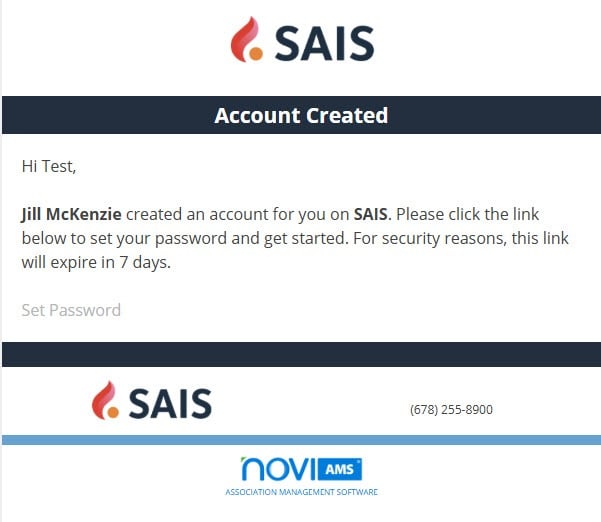
Anyone can create a login account by clicking this link and entering their work email. If you are eligible for member benefits, please complete all the necessary fields, including the name of school/employer, so the system will recognize you and grant you access to the members-only sections of the website.
Note: Only users with Management Access (primarily heads of school, administrative assistants, and designated school liaisons) can add others to the database. If you believe you require Management Access and do not yet have it, please contact our Member Services Manager at info@SAIS.org.
- Go to the SAIS website: sais.org.
- Click the Login link at the top of the page.
- Log in using your credentials.

- You will be taken to the Member Compass.
- In the left-hand menu, click Profile to view and update your information.

- Make any needed updates and save your changes.
- If you need to update your name or company, please contact us directly—these fields cannot be edited manually.
- Confirm that you are listed as one of the following for your school:
- Primary Contact
- Billing Contact
- An individual with management access to the SAIS database
(Only users with one of these roles can edit school information.)
- Go to sais.org.
- Login via the link at the top of the page, and then click the Login link that is featured at the top of the page.
- You will be taken to the Member Compass.
- In the left-hand menu, click Company to access and update your school’s profile.

- Make any necessary updates and save your changes.
- If you need to update your school’s name, please contact us using the provided form—this information cannot be changed through the website.
If you’re registering someone else for an event, they must already have a record in the SAIS database.
- Individuals can add themselves as described above.
- Only users with Management Access can add other employees.
To request Management Access, contact the Member Services Manager at info@SAIS.org.
Important Notes:
- When registering, the system automatically selects you as the attendee.
- If you are not attending, and only wish to register someone else, remove yourself by clicking the X next to your name.

- After you’ve been removed, search for the person’s name using the “Begin typing the name of your Attendee” search bar.

- If their name appears, select it.
- If not, follow the instructions above to add them to the database.
While we have endeavored to answer many common questions, please reach out to us at data@sais.org with any issues or questions. We also have a variety of career center resources of interest.
HOW TO POST A JOB
Please see this page for details.
LOGIN / SIGN-IN
On the sign-in screen, you’ll see a green button for Sign in as a member. If you’re with an SAIS member school, it’s important to click that button to login so that the system recognizes your SAIS member status and provides discounted pricing. If you’re with an SAIS member school but you’ve never logged into the SAIS website before, please create an account so that you can be recognized as a member.
NON-MEMBER EMPLOYERS: CREATING AN ACCOUNT
If you don’t have an SAIS website login, you can either
(A) create an account at the SAIS website and use that for login, or
(B) create an account using the Employer Registration link.
SAIS member schools are required to sign-in with an SAIS website account via the “Sign in as a member” button.
JOB SEEKERS: CREATING AN ACCOUNT
Please use the link for “Job Seeker Registration” to create an account for job searching. You’ll have the option to upload your resume. After doing so, the system will parse/scan your resume to create a detailed profile, which you can edit as needed. You can upload multiple versions of your resume. When you apply for a job, you can select which resume you want to include.
The SAIS Online Community (often referred to as listservs) can be found at https://connect.sais.org. This member-only resource includes communities for most major roles at SAIS member schools.
When you create a login account at SAIS, you are automatically subscribed to the one or two most applicable communities based on your job function. The complete list of communities can be found here, and this same link is available at the top of the website.
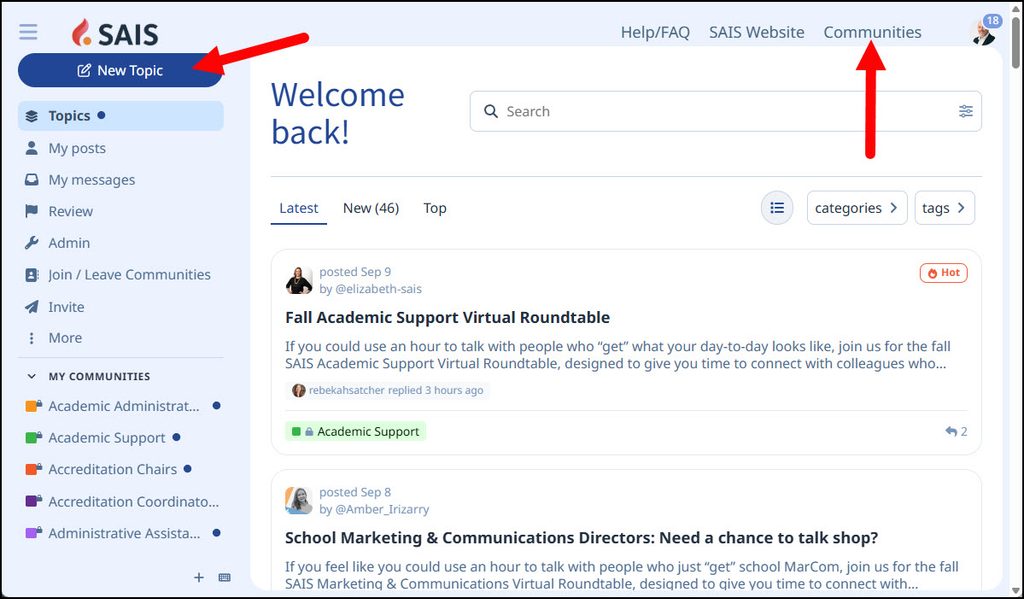
After being subscribed to a community, any new posts will be automatically emailed to you. If you wish to unsubscribe, you’ll find a link for this at the bottom of every email. Additional options appear at the bottom of all listserv emails (sample below). You can also visit the communities page mentioned earlier to leave (unsubscribe) from a community.
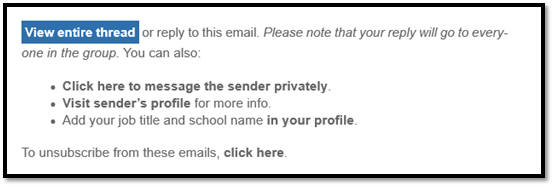
To start a new conversation in a community, you must join that community. There are two ways to post a new message in a community: (1) send an email to a special address, or (2) visit https://connect.sais.org, login, and click the New Topic button. To start a new topic by email, you can find the special email addresses to send to at this link or by clicking on Help/FAQ at the top of the SAIS community website.
Please note that when anyone replies to a message from connect.sais.org, the replies go to all users currently subscribed to that community, subject to their settings that control how frequently they are notified.
For additional details, please see these additional resources here.
- Under the About SAIS page, you’ll find the Member Directory.
- You can go directly to the SAIS Member Directory from this link.
Information Available in the Member School Directory
The directory provides the following details for each member school:
- Join Date
- Member Since Date
- Physical Address
- School Logo
- Type of School
- LinkedIn Account
- A form you can use to send a message to the school